

WordPress Products
IPTV Channels List
Complete guide for IPTV Channels List WordPress plugin - Import and display IPTV content with Elementor.
IPTV Channels List Guide
This guide covers everything from activating your license to syncing thousands of channels with TMDB metadata.
Live DemoPhase 1: Installation (The Manual Process)
Before you can use the plugin, you must install it on your WordPress site. There are two ways to do this, but the Upload Method is the most common.
1. Preparing the Files
- Login to your SofthubStore Dashboard.
- Download the
.zipfile for the IPTV Channels List plugin. - Important: Do not unzip the file on your computer; WordPress requires the zipped format for uploading.
2. Uploading to WordPress
- Log in to your WordPress Admin Area (
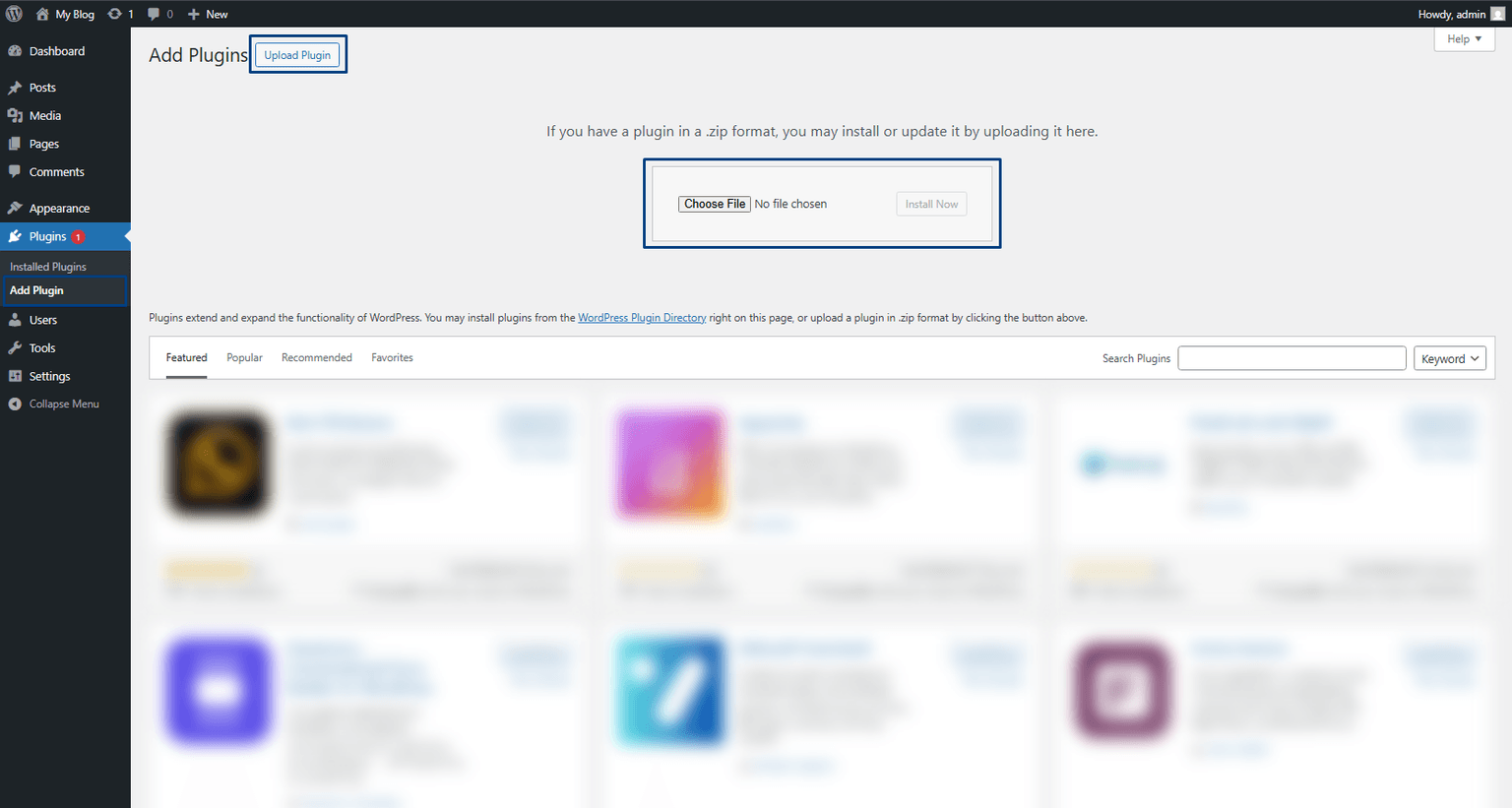
yourdomain.com/wp-admin). - In the left-hand sidebar, navigate to Plugins > Add New.
- At the top of the page, click the Upload Plugin button.
- Click Choose File and select the
.zipfile you downloaded. - Click Install Now and wait for the "Plugin installed successfully" message.
- Click the blue Activate Plugin button.
Phase 2: License Activation
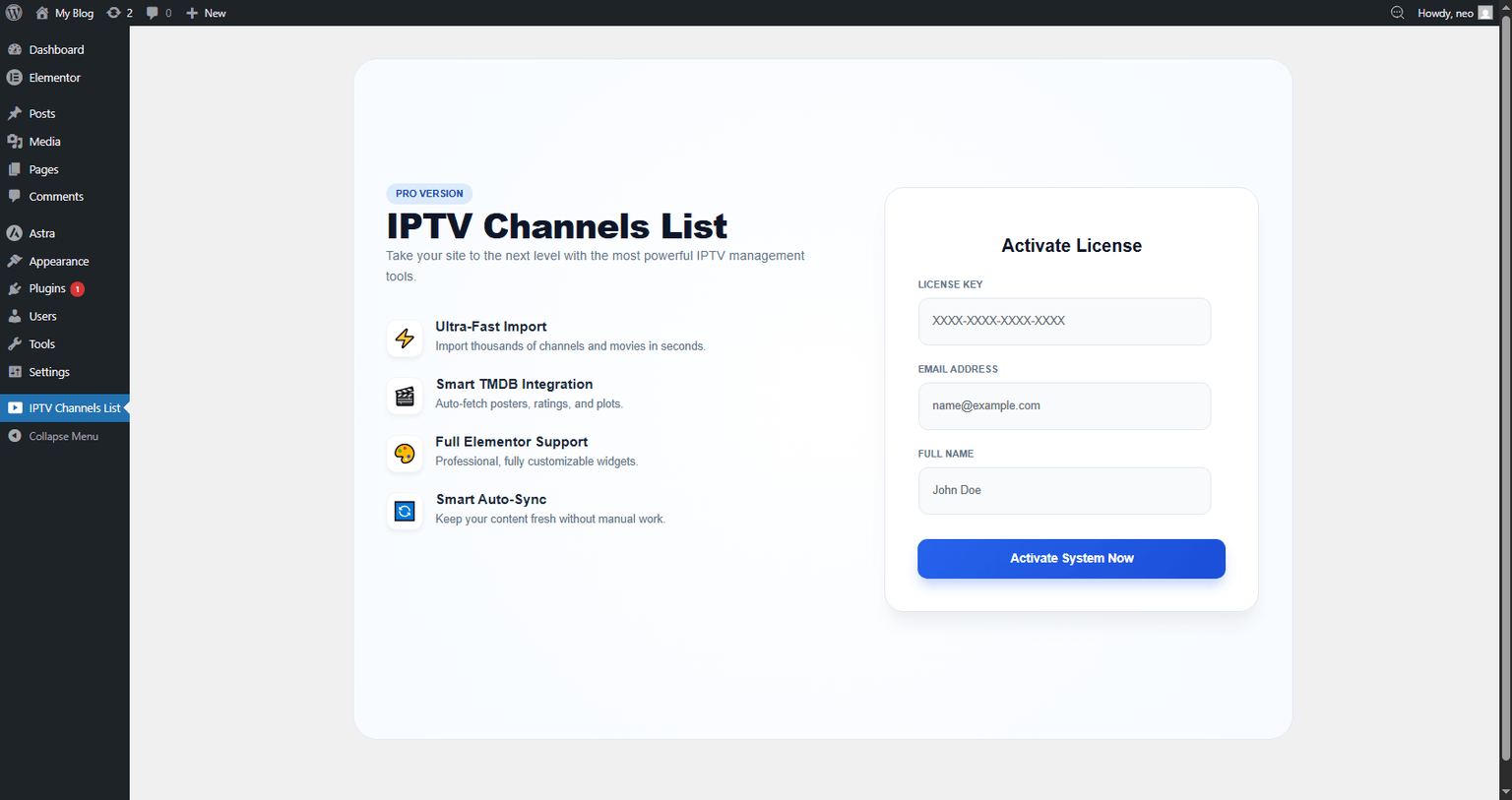
Once activated, a new menu item titled IPTV Channels List will appear in your sidebar.
- Open the Menu: Click on the plugin menu to see the activation screen.
- Enter Credentials:You must fill in all three fields accurately:
- License Key: Copy this from your store dashboard.
- Email Address: The email address used for the purchase.
- Full Name: Your official SofthubStore Name.
- Validate: Click Activate System Now. The system will verify your data and unlock all features.
Phase 3: Server & Content Setup
1. IPTV Server Configuration & Auto-Sync
In this section, you will link the plugin to your IPTV server and define the automatic update schedule.
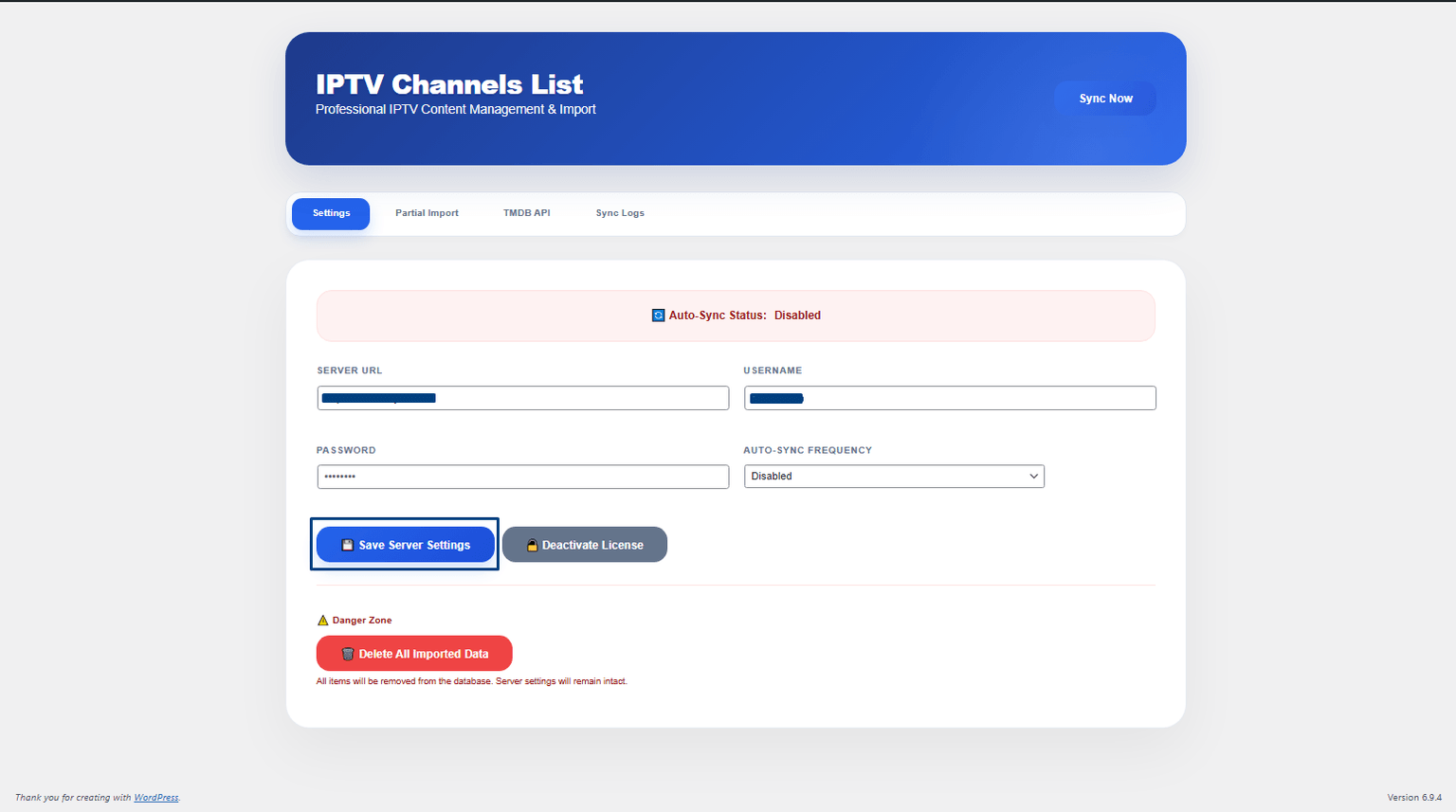
- Go to the Settings tab: Navigate to the main plugin menu and click on "Settings".
- Server URL: Enter your DNS URL including the port (e.g.,
http://iptv-provider.com:2095). - Credentials: Enter your Username and Password provided by your IPTV service provider.
- Auto-Sync Frequency:Choose how often the plugin should automatically refresh your content:
- Disabled: No automatic updates.
- Every 1 Hour: High-frequency updates (recommended for sports channels).
- Every 5 Hours: A balanced option for regular updates.
- Every 12 Hours: Updates twice a day.
- Daily: Updates once every 24 hours.
- Save Server Settings: Click the button to store your credentials and activation schedule.
2. Partial Import (Critical Step)
To keep your database fast and clean, we recommend only importing what you need:
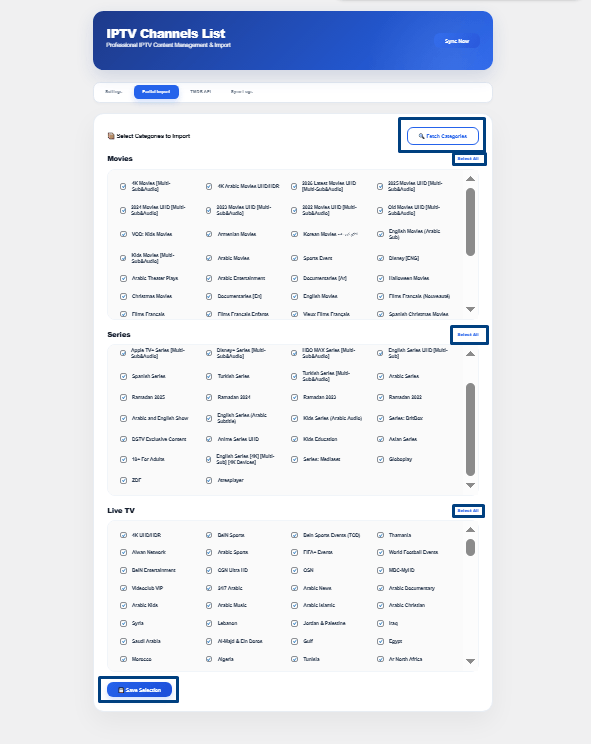
- Navigate to the Partial Import tab.
- Click the Fetch Categories from Server button.
- The Wait: Please wait 5 to 10 seconds. The plugin is communicating with your IPTV server to list all available categories.
- Selection: Categories will appear for Movies, Series, and Live TV.
- Smart Filtering: Use the Select All button for a specific group, or manually check individual categories.
- Save: Click Save Selection.
Phase 4: Metadata & Sync
TMDB API Integration
- If you want posters, ratings, and plots, go to the TMDB API tab.
- Enter your API key and click Save (No images/screenshots needed for this tab).
Starting the Sync
- Click the Sync Now button in the header.
- Multi-Step Batching: The plugin will process Movies, then Series, then Live TV to avoid server crashes.
- Stop Button: If you need to pause, click Stop. All progress made up to that point is saved.
Import Expectations
| Items Count | Time (Standard) | Time (With TMDB) |
|---|---|---|
| 5,000 items | ~ 1-2 mins | ~ 5-10 mins |
| 15,000 items | ~ 4-6 mins | ~ 15-25 mins |
| 30,000 items | ~ 8-12 mins | ~ 40-60 mins |
Official Support Channels
If you encounter a "Timeout" or "Activation Error," reach out to us:
- Support: support@softhubstore.com
- Info: info@softhubstore.com
- Telegram: @neoe3